How to Create Your First MunchReach Campaign

Never Let a Promising Lead Slip Through the Cracks
Automate personalized follow-ups, reach prospects with the right offering.
A cold email campaign is a planned set of emails you send to people who don't know you yet. Each person gets a first email, then a few polite follow-ups if they don't answer. That's it.
Beginners need structure because small mistakes add up fast. A bad list, a broken name tag, or too much volume on day one can hurt your results and your mailbox.
In this guide, you'll learn how to create your first MunchReach campaign from start to finish. We'll connect a mailbox, import leads, write your first email, add follow-ups, set a schedule, launch, and read your results. Every screenshot comes from the real MunchReach app.
Before you start, you'll need a MunchReach account, a mailbox on your own domain, and a short list of people you actually want to reach.
TL;DR: The Whole Process at a Glance
Times are rough estimates for a first campaign. Yours may be faster or slower.
| Step | What You Need to Do | Why It Matters | Estimated Time |
|---|---|---|---|
| 1. Connect your email accounts | Add Gmail / Google Workspace, Microsoft 365 / Outlook, or an IMAP / SMTP mailbox under Mailboxes. | Your emails go out from your own mailbox, and replies come back into MunchReach. | About 5–10 minutes per mailbox |
| 2. Prepare your lead list | Clean a CSV, remove duplicates, verify emails, then use Import CSV and map the columns. | Clean data means fewer bounces and correct personalization. | About 20–60 minutes |
| 3. Create a new campaign | Click New campaign, add a name and a short description. | A clear name keeps tests and segments easy to find later. | About 2 minutes |
| 4. Write your first email | Write a subject, a personal opener, one problem, one offer, one question. | The first email does most of the work in a sequence. | About 20–40 minutes |
| 5. Add automated follow-ups | Use Add step in Sequences and set a wait time for each step. | Many replies come after the first email, not from it. | About 15–30 minutes |
| 6. Configure sending settings | Set the schedule, inbox rotation, daily cap, campaign limit, stop rules and tracking. | Steady, modest sending protects your mailboxes. | About 10–15 minutes |
| 7. Review and launch | Check leads, mailboxes, variables and links, use Send test, then start. | A 5-minute check stops embarrassing mistakes. | About 10 minutes |
| 8. Monitor performance | Watch sent, replies, bounces and unsubscribes in Overview and Analytics. | Results tell you what to fix next. | A few minutes a day |
The 60-Second Summary
- Connect a mailbox. Use Google, Microsoft, or IMAP / SMTP. Use a domain with SPF, DKIM and DMARC set up.
- Import a clean list. Upload a CSV with email, first name and company. Remove duplicates and verify addresses first.
- Create the campaign. Click New campaign and give it a clear name, like "Gift Shops – California."
- Write one short email. One idea, one question. Use variables such as
{{company}}carefully. - Add 2–3 follow-ups. Space them a few days apart. Each one should add something new.
- Set the schedule and limits. Pick business days and hours. Keep volume modest at first.
- Send a test, then launch. Check every variable and link in the test.
- Track and improve. Focus on replies and bounces. Treat opens as a rough signal only.
Before You Start: What You Need
- A MunchReach account. You can sign up here and check plan limits on the pricing page.
- A connected sending mailbox. MunchReach uses mailboxes you own. Your email provider delivers the mail.
- A verified, relevant lead list. People who could truly use what you offer.
- A professional email domain. Like you@yourcompany.com, not a free address.
- A short, personal message. Around 50–120 words is plenty.
- A clear goal. For example: "Book 5 calls with gift shop owners this month."
Why use a separate outreach domain?
Many teams send cold email from a second domain, like getyourcompany.com. If something goes wrong with outreach, your main company email is less likely to be affected. Point the second domain to your main website so people can still find you.
Why SPF, DKIM and DMARC matter
These are three DNS records that prove your emails really come from you:
- SPF lists the servers allowed to send for your domain.
- DKIM adds a digital signature to each email.
- DMARC tells inboxes what to do if a check fails.
Your email provider gives you these records. Google's email sender guidelines explain the requirements. Our email deliverability guide covers the basics in plain English. Good setup helps, but no tool can guarantee inbox placement.
Step-by-Step Campaign Creation Guide
Step 1: Connect Your Email Accounts
Open Mailboxes from the left menu and add a mailbox. MunchReach supports three ways to connect:
- Gmail / Google Workspace – sign in with Google. No server settings needed.
- Microsoft 365 / Outlook – sign in with Microsoft.
- IMAP / SMTP – for hosts like Zoho, GoDaddy, Namecheap Private Email and others. You'll enter your email, password or app password, and server details.
See every option on our supported mailbox providers page.
Check the connection status. After connecting, the mailbox appears in your Mailboxes list. Make sure it shows as connected with no error before you use it in a campaign. If it shows an error, reconnect it or recheck your password and server settings.
New mailboxes should start slowly. MunchReach includes mailbox warmup that raises volume gradually over time.
Step 2: Prepare and Import Your Lead List
Your list matters more than your copy. A great email sent to the wrong people still fails.
Prepare your CSV file. Use one row per person and one column per field. Useful columns:
- Email (required)
- First name and last name
- Company
- Job title, city, website, or anything else you'll mention in the email
Clean it first. Remove duplicate rows. Delete people who asked not to be contacted. Run the list through an email verification tool and drop invalid addresses. Fewer bounces protect your mailbox reputation.
Import into MunchReach. Go to Leads, then click Import CSV. Choose an existing lead list or create a new one. Then match each CSV column to the right MunchReach field. For example, map "Company Name" to Company. Check the mapping twice. A wrong match means "Hi Acme Inc" in the first-name spot.
Learn more about finding the right people on our lead generation page.
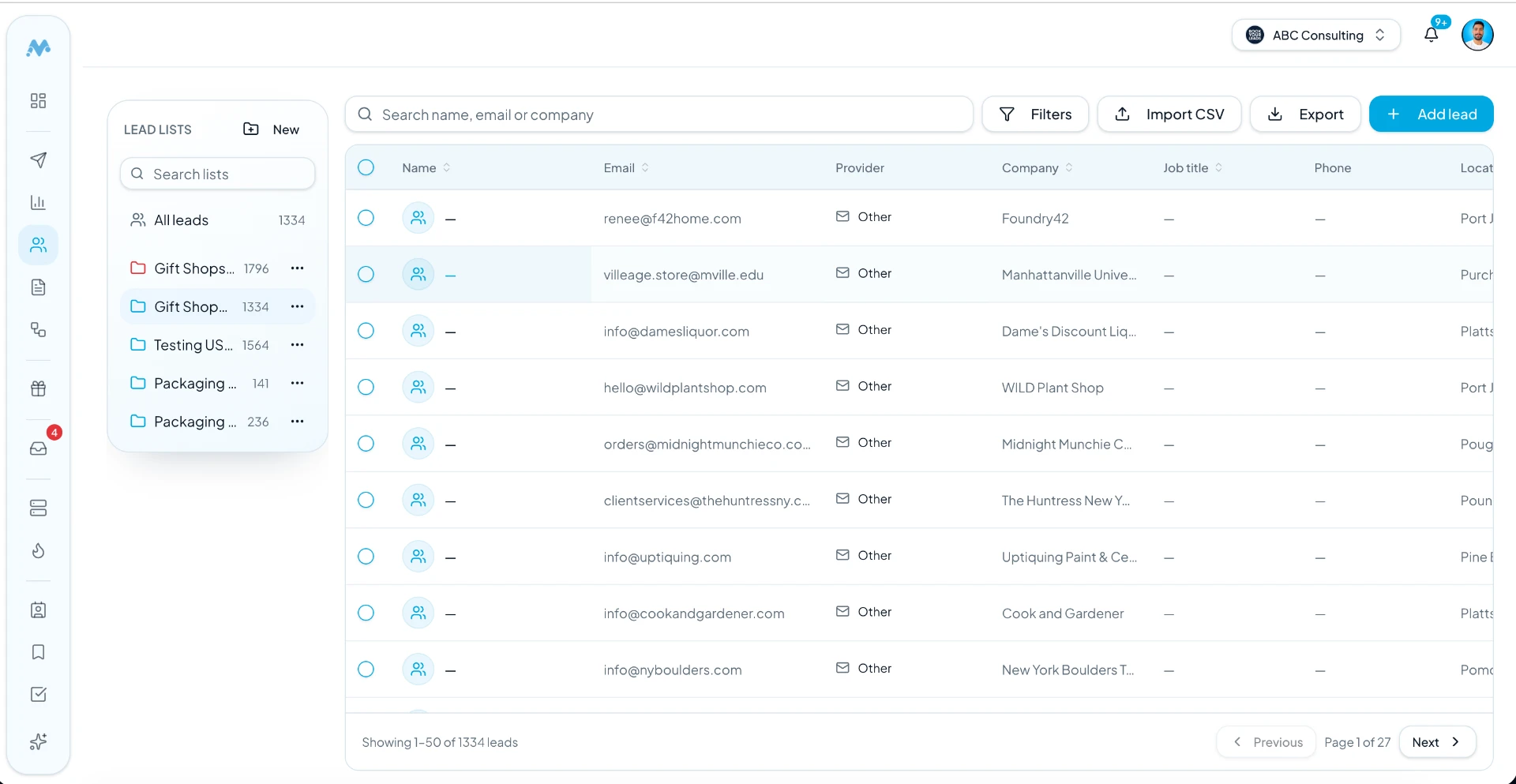
Step 3: Create Your First Campaign
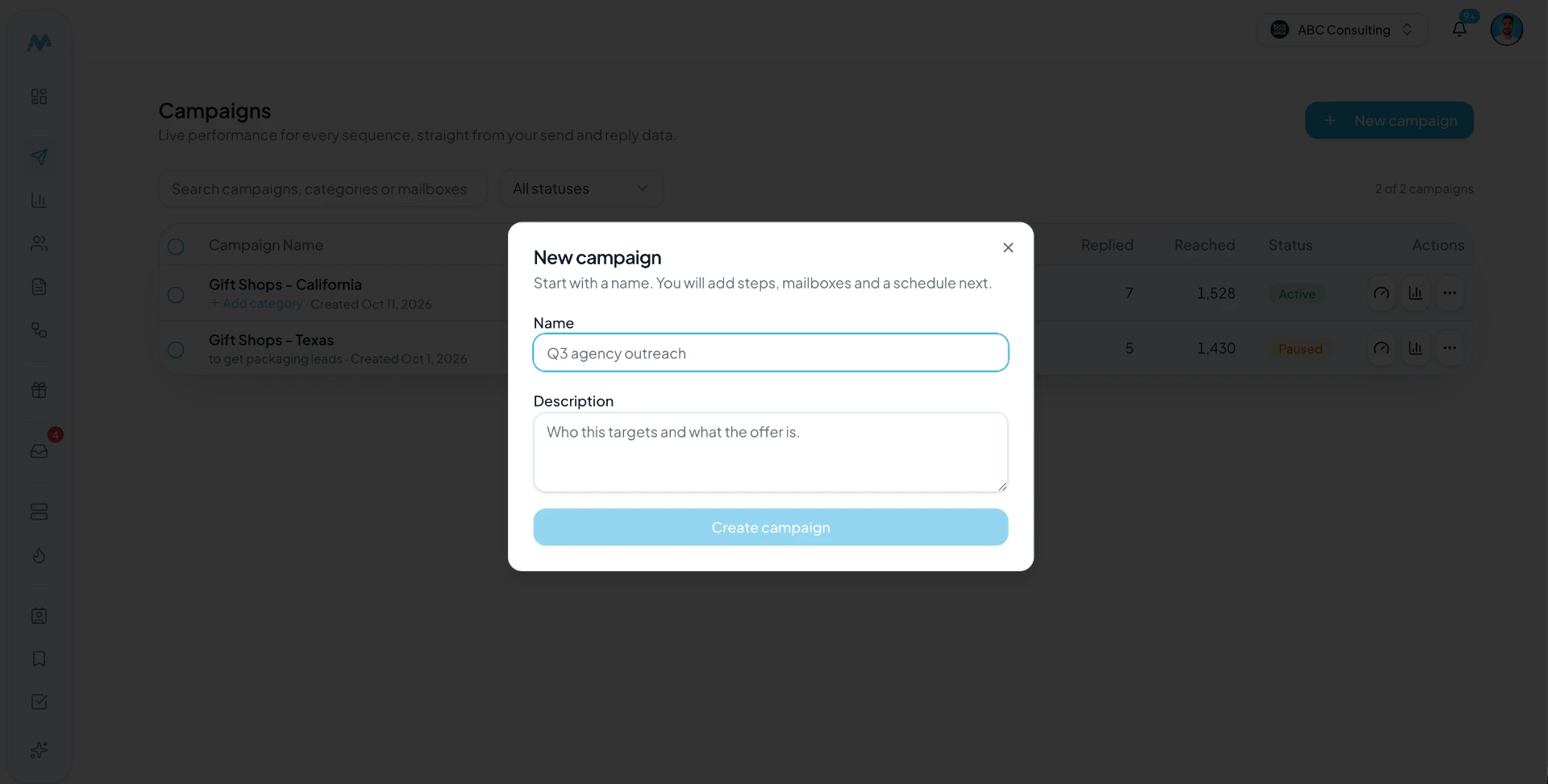
Click Campaigns in the left menu. Then click New campaign in the top right.
A small window opens with two fields:
- Name – make it descriptive, like "Gift Shops – California" or "Q3 agency outreach." You'll thank yourself when you have ten campaigns.
- Description – note who you're targeting and what the offer is.
Click Create campaign. The campaign opens with tabs for Leads, Sequences, Schedule, Email Accounts, Options, and more. Add your lead list in the Leads tab. Pick your sending mailboxes in Email Accounts. Click Save as you go.
Want a deeper tour? See MunchReach campaigns.
Step 4: Write Your First Cold Email
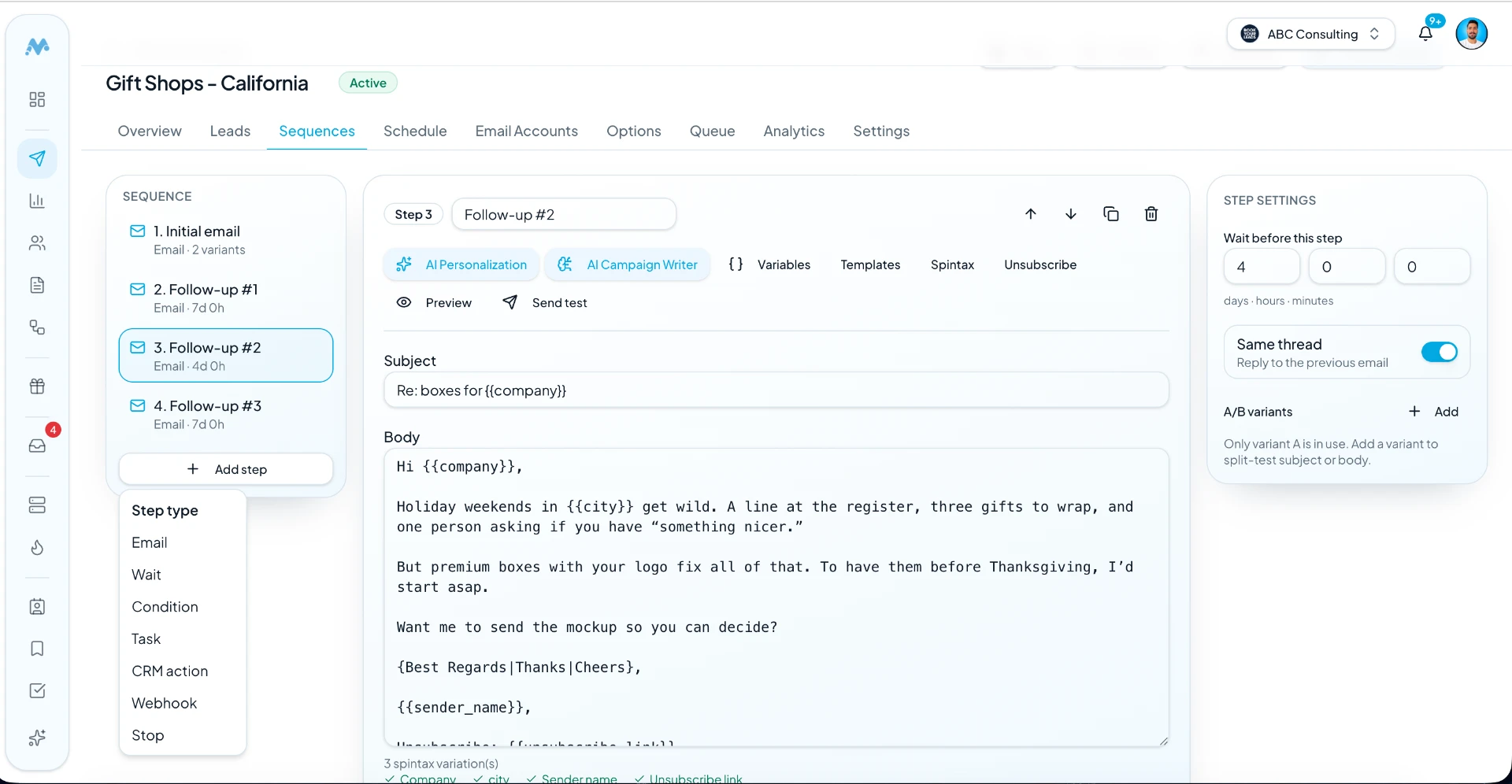
Open the Sequences tab. Step 1 is your initial email. A good cold email has five parts:
- Subject line. Short, plain, and specific. Two to five words. No ALL CAPS.
- Personal opener. Show you know who they are. Mention their company, city or role.
- The problem. One pain they likely have.
- Your value. One sentence on how you help.
- One call to action. An easy yes/no question.
Example email:
Subject: boxes for {{company}}
Hi {{first_name}},
Saw that {{company}} sells handmade gifts in {{city}}. Nice shop.
Most gift stores I talk to wrap everything by hand during the holidays. It slows the line down.
We make branded gift boxes that arrive ready to fold. Shops usually save a few minutes per order.
Worth sending you a free sample?
{{sender_name}}
Use the Variables button to insert fields like {{company}}. Make sure every variable has data in your list, or the email may look broken. Spintax lets you rotate small phrases, like {Thanks|Cheers}. You can also add an A/B variant to test two subject lines.
Using the AI Campaign Writer
Stuck on a blank page? Click AI Campaign Writer in the editor to draft a starting email. Use AI Personalization to tailor lines for each lead. Always read and edit what the AI writes. It should sound like you. Read more about the AI Campaign Writer and AI personalization. For more ideas, browse our cold email templates.
Step 5: Add Automated Follow-Ups
Busy people miss emails. A polite follow-up gives them a second chance to reply.
In the Sequences tab, click Add step and choose Email. In Step settings, set "Wait before this step" in days, hours and minutes. Turn on Same thread if you want the follow-up to appear as a reply to the earlier email.
Tips for good follow-ups:
- Add something new each time: a tip, an example, or a simpler ask.
- Don't just say "bumping this up."
- Wait at least a few days between emails.
- Stop after 2–3 follow-ups.
Simple 3-email sequence:
| When | Idea | |
|---|---|---|
| 1. Initial email | Day 1 | Short intro and one question. |
| 2. Follow-up #1 | About 3–4 days later | Share a quick example or useful tip. |
| 3. Follow-up #2 | About 5–7 days later | Polite close: "Should I stop reaching out?" |
Stopping on reply: In the Options tab, the Stop when a lead replies setting cancels the remaining follow-ups for that lead when a reply arrives. The reply appears in your Unified Inbox. Add the unsubscribe link from the editor so people can opt out. Learn more about email sequences.
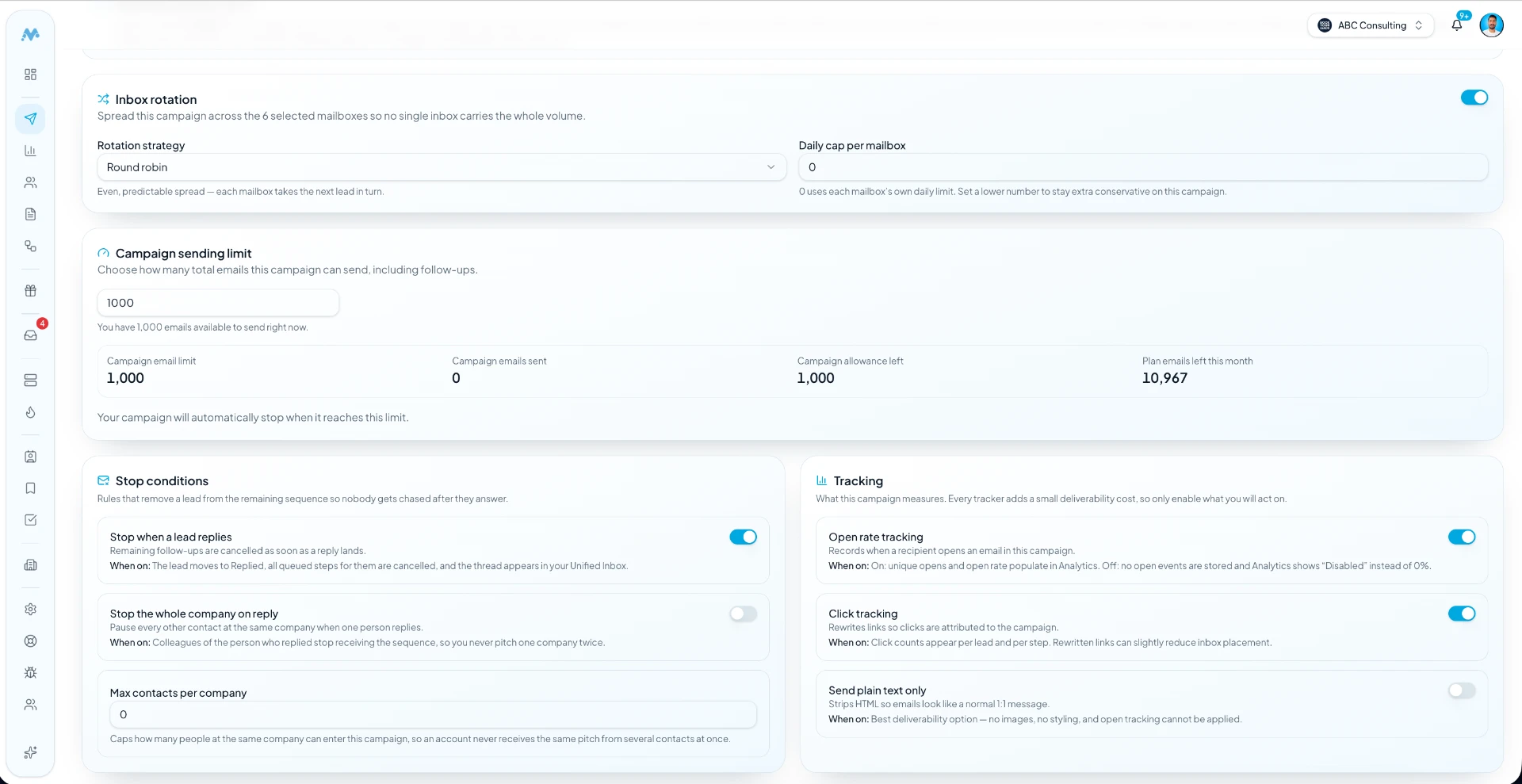
Step 6: Configure Your Sending Settings
Settings decide when and how much you send.
- Schedule. In the Schedule tab, pick sending days and a time window. Business days during working hours in your leads' time zone are a sensible start.
- Inbox rotation. In Options, turn on inbox rotation to spread sends across your selected mailboxes. "Round robin" gives each mailbox the next lead in turn.
- Daily cap per mailbox. Leave it at 0 to use each mailbox's own daily limit, or set a lower number to be extra careful.
- Campaign sending limit. Set a total number of emails for this campaign, including follow-ups. The campaign stops when it reaches the limit.
- Stop conditions. Stop when a lead replies. You can also stop the whole company on reply, or cap contacts per company.
- Tracking. Open and click tracking are optional. Each tracker adds a small deliverability cost. Plain-text-only sending is also available.
Grow slowly. Start with small daily numbers and raise them over weeks, not days. Watch mailbox health in warmup. If bounces or complaints rise, slow down.
Step 7: Review and Launch Your Campaign
Before you launch, go through this checklist:
- ☐ The right lead list is attached.
- ☐ The right sending mailboxes are selected, and all are connected.
- ☐ No broken variables. Use Preview to check real lead data.
- ☐ The sequence order and wait times look right.
- ☐ Every link works.
- ☐ Sending limits are modest.
- ☐ An unsubscribe link or clear opt-out line is included.
- ☐ You clicked Send test and read the test email in your own inbox.
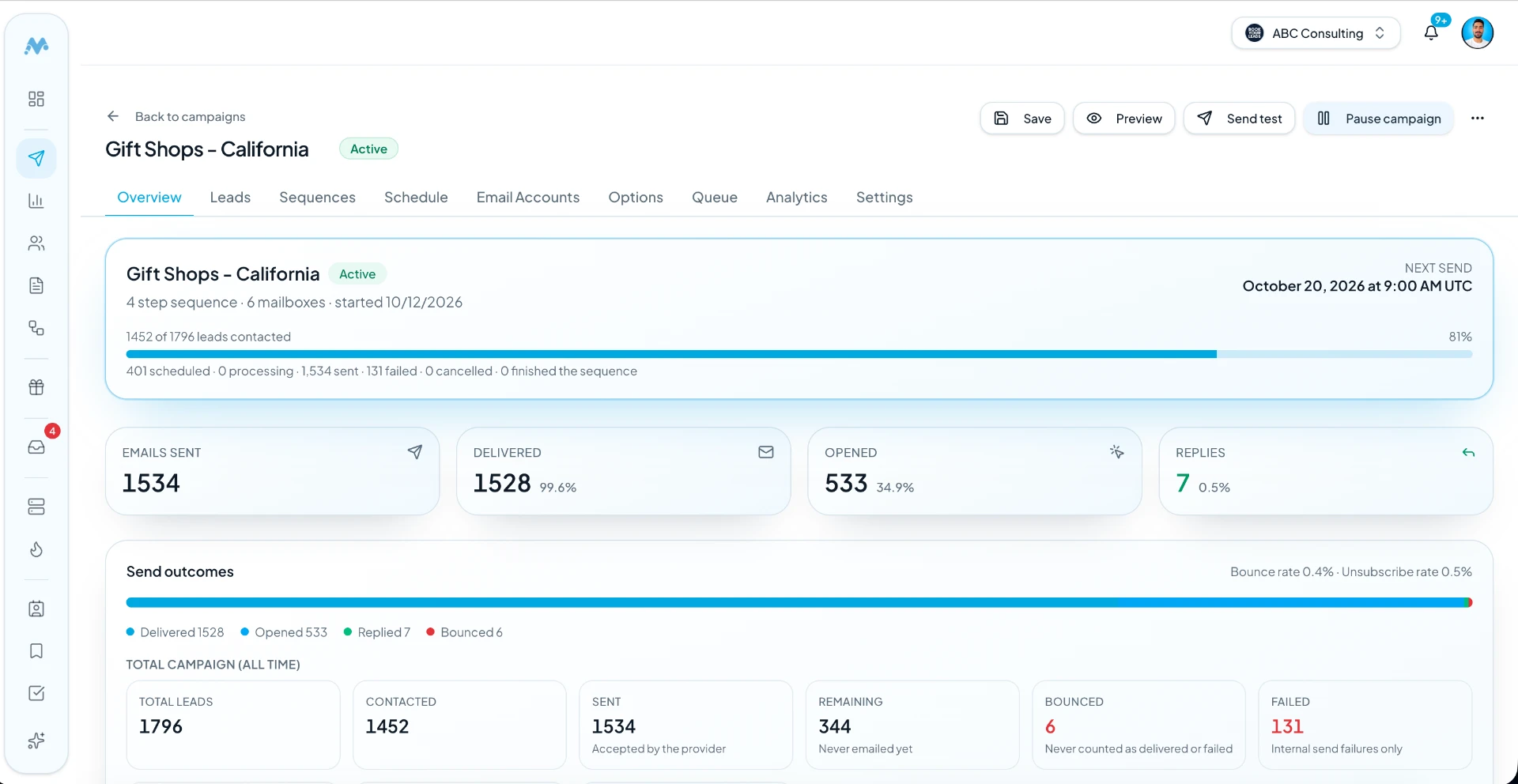
When everything checks out, start the campaign from the campaign header. Its status changes to Active. The Overview tab then shows the next send time and progress. You can pause it anytime with Pause campaign.
Step 8: Monitor Your Campaign Performance
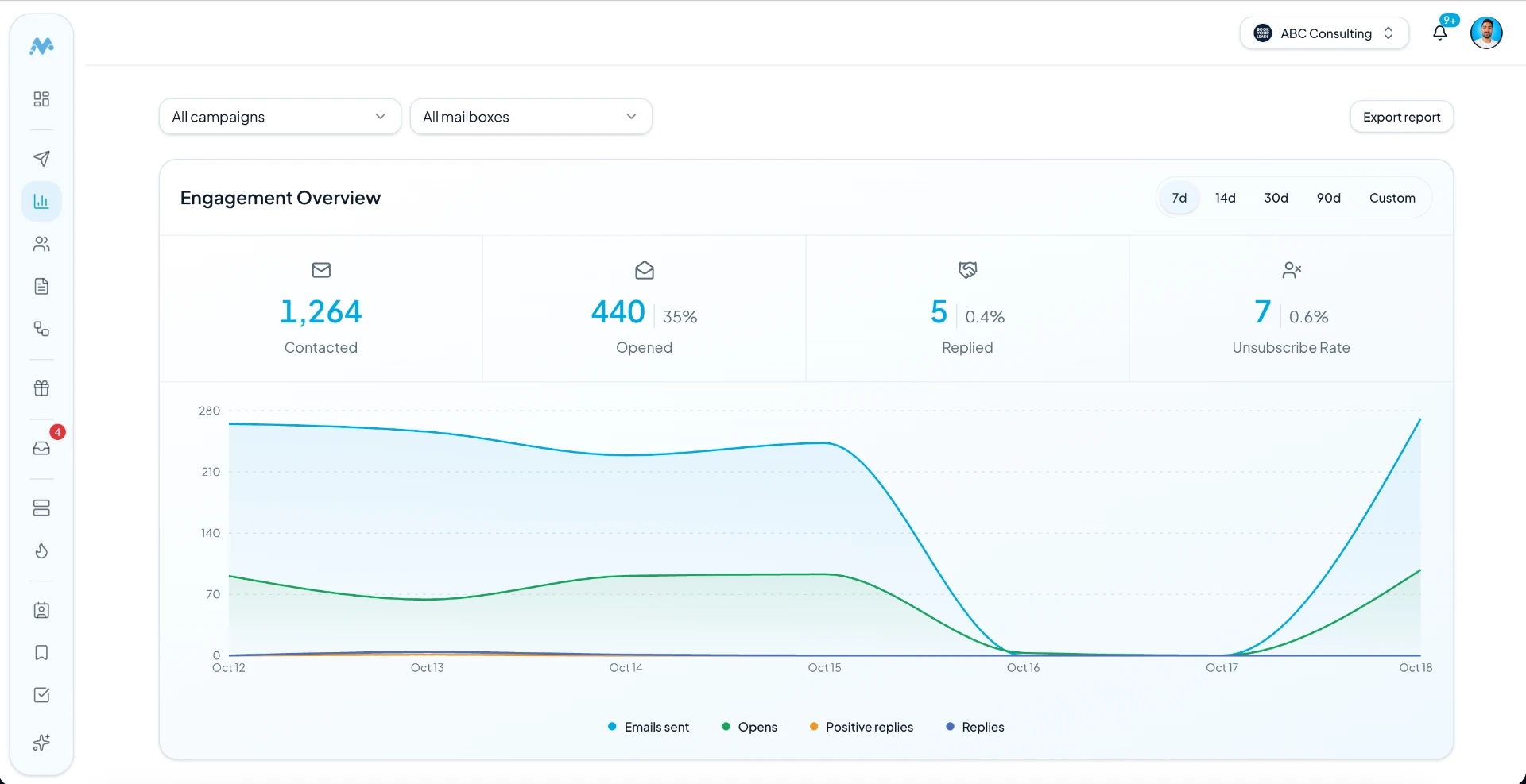
Check the campaign Overview tab and the main Analytics page. Key numbers:
- Emails sent – how many your provider accepted.
- Opens – only if open tracking is on. Apple Mail Privacy and image blocking can make opens look higher or lower than reality. Treat them as a rough hint.
- Replies – the number that matters most.
- Positive replies – people who want to talk.
- Bounces – emails that couldn't be delivered. A rising bounce rate means your list needs cleaning.
- Unsubscribes – people who opted out. Respect them.
If results are poor: pause first. Then check your list, your targeting and your first line. Change one thing at a time so you know what helped.
New to outreach? Read our guide to cold email outreach, and learn why emails land in spam.
Tips for Running Your First Successful Campaign
- Start small. Try 100–200 well-chosen leads before scaling.
- Personalize. One real detail beats three fake compliments.
- Keep it short. If it doesn't fit on a phone screen, cut it.
- Avoid spammy words. Skip "FREE!!!", "guaranteed," and too many links.
- Use verified contacts. Verify every list before import.
- Test subject lines. Use A/B variants and judge by replies.
- Space follow-ups. A few days apart feels polite, not pushy.
- Watch bounces. If bounces climb, pause and clean the list.
- Honor opt-outs fast. It's respectful and often legally required.
- Learn from replies. Even "no thanks" tells you something.
Common Mistakes Beginners Should Avoid
1. Sending to unverified lists
Old or scraped lists bounce a lot. Bounces hurt your sender reputation.
2. Adding many mailboxes without setup
More mailboxes won't help if they lack SPF, DKIM, DMARC and warmup. Set up a few properly first.
3. Writing long emails
Long emails feel like work. Most busy people won't read them.
4. Sending big volumes on day one
Sudden spikes look suspicious to email providers. Ramp up slowly.
5. Using generic templates
Templates are a starting point. Rewrite them for your audience.
6. Ignoring negative replies and unsubscribes
Keep emailing someone who said no and they may mark you as spam.
7. Not checking results
Launching and walking away means problems grow quietly. Check in daily for the first week.
Frequently Asked Questions
Is MunchReach suitable for beginners?
Yes. MunchReach walks you through each part: connect a mailbox, import leads, create a campaign, write steps and set a schedule. Tools like the AI Campaign Writer, Preview and Send test help you avoid mistakes. You still need a good list and a clear offer, which matter more than any software.
How many emails should I send in my first campaign?
Start small. A first campaign of 100–200 carefully chosen leads is plenty to learn from. Keep daily volume per mailbox low, especially for new mailboxes, and raise it slowly over weeks. You can set a campaign sending limit and a daily cap per mailbox in MunchReach to keep things controlled.
Do I need multiple email accounts to use MunchReach?
No. One connected mailbox is enough to run a campaign. Many teams add more mailboxes later so each one sends a smaller, safer share. MunchReach's inbox rotation can spread a campaign across the mailboxes you select. Each new mailbox should be properly authenticated and warmed up first.
Can MunchReach automatically send follow-up emails?
Yes. Add follow-up steps in the Sequences tab and set a wait time for each one. MunchReach sends them on schedule. With "Stop when a lead replies" turned on, remaining follow-ups for that lead are cancelled when they reply, and the conversation shows up in your Unified Inbox.
How can I improve my cold email reply rate?
Target a narrow, relevant group. Open with a real detail about them. Mention one problem and one clear benefit. End with an easy question. Keep it short and follow up two or three times with something new. Then compare replies across subject lines and messages, and change one thing at a time.
How long does it take to create your first MunchReach campaign?
If your mailbox and lead list are ready, you can set up a simple campaign in roughly an hour. Writing a good email and follow-ups usually takes the most time. Cleaning and verifying a list, or setting up a new domain, can add extra time before you start.
Final Thoughts
Creating a cold email campaign doesn't have to be complicated. Start small. Use relevant, verified leads. Write short, personal emails. Follow up politely. Then improve based on the replies you actually get.
Do that, and each campaign will teach you something that makes the next one better.
Ready to create your first cold email campaign? Start with MunchReach and manage your outreach from one platform.
Create your MunchReach account →
Want to learn more first? Visit the MunchReach homepage or the Help Center.
Ready to improve your cold email campaigns?
Set up your domain, warm your mailboxes and launch a sequence in MunchReach.
You May Also Like
Cold Email Outreach in 2026: The Complete Guide to Getting More Replies
A practical guide to cold email outreach in 2026: targeting, list quality, sending infrastructure, offers, copy, personalization, follow-ups and the metrics that matter.
 Anus KhalidSep 4, 202614 min read
Best Cold Email Software for B2B Marketing Teams in 2027
Compare the 10 best cold email software platforms for B2B teams in 2026. Explore features, pricing, automation, deliverability and more.
Anus KhalidOct 16, 202618 min readCold Email Software Pricing: How Much Does Cold Outreach Really Cost in 2026?
How much does cold email software cost in 2026? Compare pricing models, hidden costs, sending accounts, domains, data, and the true cost of cold outreach.
Anus KhalidSep 7, 202614 min read